Posts

Showing posts with the label Entering Points in AutoCAD

Entering Points in AutoCAD: DIRECT DISTANCE ENTRY

Image
You can draw a line by specifying the length of the line and its direction using D irect Distance Entry . The Direction is determined by the position of the cursor, and the length of the line is entered from the keyboard. If the ortho mode is on, you can draw lines along the X or Y axis by specifying the length of the line and positioning the cursor along the ortho. You can also use it with the other draw commands like the rectangle command. You can use Direct Distance Entry with polar tracking and SNAPANG (snap angle). For example if SNAPANG is 45-degree and ortho mode is off, you can draw a line at 45 or 135-degree direction by positioning the cursor and entering the distance from the keyboard. Similarly, if the polar tracking is on, you can position the cursor at the predefined angles and then enter the length of the line from the keyboard.

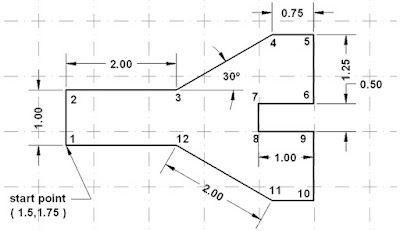
Drawing Exercise in AutoCAD

Image
Draw the object shown in Figure below using the absolute, relative rectangular, and relative polar coordinate systems to locate the points. Do not draw the dimensions; they are for reference only.

Entering Points in AutoCAD: RELATIVE POLAR CO-ORDINATES

Image
RELATIVE POLAR CO-ORDINATES - You would use this system if you know that you want to draw a line a certain distance at a particular angle. You would enter this as @D <90> Example: For this example, enter the relative polar coordinates of each point in the table, and then draw it. Use absolute coordinates for the start point. (1.5,1.75). Follow the given dimension shown in the drawing.

Entering Points in AutoCAD: RELATIVE CO-ORDINATES

Image
RELATIVE CO-ORDINATES - This allows you to enter points in relation to the first point you have entered. After you've entered one point, the next would be entered as @X,Y. This means that AutoCAD will draw a line from the first point to another point X units over and Y units up relative to the previous point.

Entering Points in AutoCAD: ABSOLUTE CO-ORDINATES

Image
ABSOLUTE CO-ORDINATES - Using this method, you enter the points as they relate to the origin of the WCS. To enter a point just enter in the exact point as X,Y. Example Enter the absolute coordinates of the points in the following table. Then draw the figure using the absolute coordinates.